
Google Business Profile Setup for Small Businesses: Complete Guide
Google Business Profile Setup for Small Businesses: Complete Guide
 Rutuja Gaikwad
When people need a nearby shop, restaurant, salon, or service provider, they often search on Google. They may look for business hours, contact details, directions, customer reviews, or available services before deciding where to go.
This is why having an online presence is important for every small business. A Google Business Profile helps eligible businesses display important information on Google Search and Google Maps.
Whether you run a local shop, a service business, or a small company, setting up your profile can help customers discover your business more easily. In this guide, we will explain how to set up Google Business Profile, complete verification, and optimise your profile to improve your local online presence.
Your Google Business Profile works even better as part of a strong online presence. Learn why having your own website matters in our article: Why Every Small Business Needs a Website in 2026, Even If You Already Have Instagram.
What Is Google Business Profile and Why Does It Matter?
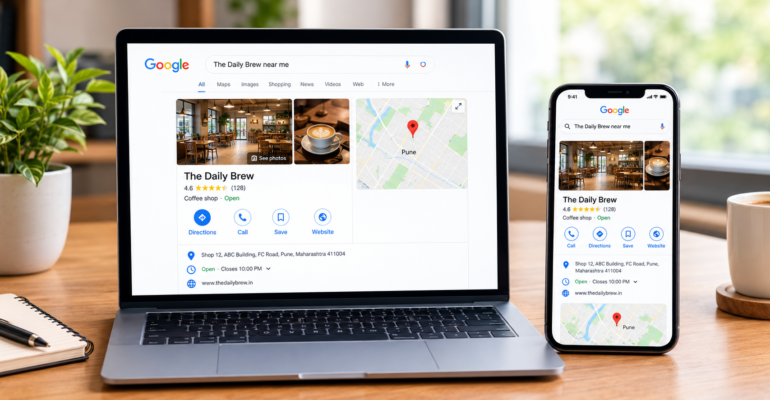
Google Business Profile is a free tool that allows eligible businesses to manage how their information appears on Google Search and Maps.
Customers can use your profile to find details such as:
- Business name and location
- Phone number and website
- Opening hours
- Products or services
- Photos and customer reviews
- Directions to your business
For example, if someone searches for “website designer near me,” Google may display relevant businesses in the area. A complete and accurate profile helps potential customers understand what your business offers.
Google Business Profile is especially useful for local businesses that want to connect with customers in their service area.
Benefits of Google Business Profile for Small Businesses
A well-maintained Google Business Profile can help small businesses build trust and connect with local customers.
1.Improve Local Visibility
Your business may appear when people search for relevant products or services in your area. This can help more potential customers discover your business online.
2.Share Accurate Business Information
Customers can quickly check your working hours, phone number, location, website, and services. Keeping these details updated reduces confusion and makes it easier for customers to contact you.
3.Build Customer Trust
Genuine business photos, helpful updates, and honest customer reviews can help people understand your business before visiting or contacting you.
4.Help Customers Take Action
Depending on the available features, customers may be able to call your business, visit your website, request directions, or explore your services directly from your profile.
However, creating a profile does not guarantee higher rankings or more customers. Results depend on several factors, including relevance, distance, and how well-known your business is.
How to Set Up Google Business Profile Step by Step
Setting up a profile is straightforward if you follow the correct process.
Step 1: Visit the Official Website
Visit Google Business Profile and sign in using your Google Account.
Use an account that your business can access and manage securely.
Step 2: Add or Claim Your Business
Search for your business name to check whether a profile already exists.
If a profile is available, follow Google’s process to claim it. If no profile exists, follow the instructions to create one.
Avoid creating duplicate profiles for the same business.
Step 3: Enter Your Business Name
Use your real-world business name as it appears on your shop sign, website, and other business materials.
Do not add extra keywords, locations, or promotional phrases to your name unless they are genuinely part of your business name.
Step 4: Choose the Right Business Category
Select the category that best describes your main business activity.
For example, a business that primarily provides website design services should choose the most accurate available category for that service.
You can add relevant additional categories if they accurately describe your business.
Step 5: Add Your Address or Service Area
If customers visit your business location, enter the correct address.
If you provide services at customers’ locations and do not serve customers at your own business address, configure your profile as a service-area business and follow Google’s address guidelines. Do not display a residential or other address publicly if it should be hidden.
Step 6: Add Contact Details and Opening Hours
Enter your correct phone number, website URL, and business hours. Add other requested details where applicable.
Review every field before continuing to make sure customers receive accurate information.
How to Verify Your Google Business Profile
Google Business Profile verification helps Google confirm that you are authorised to manage the business.
After entering your details, Google will show the verification options available for your business. These may vary depending on the business and other circumstances.
Follow the method displayed in your account. Depending on eligibility, Google may offer options such as phone, email, video recording, or live video verification.
Make sure your business information is accurate and that you can provide any details requested during the process.
Once you complete the required steps, check your profile for its verification status. If Google requests additional information, follow the instructions provided.
Important: You cannot always choose your preferred verification method. Use only the options Google makes available for your business.
Need help setting up your Google profile?
Setting up and verifying your Google Business Profile correctly can help customers find your business online. Contact Groweb for support with Google Business Profile setup, local SEO, and improving your business’s online presence.
How to Optimise Your Business Profile with Categories and Photos
Creating your profile is only the beginning. Regularly updating it helps customers find useful and accurate information about your business.
1.Choose Relevant Categories
Your primary category should describe your main business activity. Additional categories should represent other services you genuinely provide.
Avoid selecting unrelated categories simply to appear in more searches.
2.Upload Genuine Photos
Photos help customers understand what your business looks like and what you offer.
Consider adding:
- Exterior and interior photos, where applicable
- Products or completed projects
- Your team or workplace
- Examples of your services
- Other genuine images that help customers understand your business
Use clear, recent images and avoid misleading stock photos presented as real pictures of your business.
3.Write a Clear Business Description
Explain what your business does, which services you provide, and who you serve. Keep the description helpful and natural.
For example, a digital marketing agency can briefly explain its SEO, website development, and social media marketing services.
Do not fill the description with repeated keywords or promotional claims that cannot be supported.
4.Keep Your Information Updated
Update your hours during holidays, change outdated contact details, and review your service information regularly.
Accurate information helps customers contact or visit your business with confidence.
For more tips on improving your business’s visibility in local search results, read our guide: Local SEO for Small Businesses: A Complete Guide to Getting More Local Customers.
How to Use Google Business Profile Posts and Customer Reviews
Your profile can help you communicate with customers even after the initial setup.
Share Useful Updates
Where posting features are available, share relevant business updates, new services, special offers, events, and announcements.
Keep your posts informative and include a clear next step when appropriate, such as visiting your website or contacting your business.
Ask Customers for Honest Reviews
Customer reviews can help people understand other customers’ experiences with your business.
You can ask customers to leave honest feedback using Google’s review link. However, never offer money, discounts, gifts, or other incentives in exchange for reviews.
Do not ask only satisfied customers to review your business or try to influence the rating.
Respond to Customer Reviews
Thank customers for positive feedback and respond professionally to negative reviews.
If a customer raises a concern, acknowledge the issue and suggest an appropriate way to resolve it. Avoid sharing private customer information in your response.
Regularly monitoring reviews shows that you take customer feedback seriously.
Common Google Business Profile Mistakes to Avoid
Some mistakes can make your profile less useful or create problems with Google’s guidelines.
Avoid these common issues:
- Adding extra keywords to your business name: Use your real-world business name rather than adding phrases to improve rankings.
- Entering incorrect information: Your address, phone number, opening hours, and website should be accurate.
- Choosing unrelated categories: Select categories that genuinely represent your business.
- Creating duplicate profiles: Check for an existing profile before creating another.
- Ignoring customer reviews: Respond professionally and monitor feedback regularly.
- Using misleading photos: Upload genuine images that accurately represent your business.
- Forgetting to update information: Review your profile whenever your services, hours, or contact details change.
Frequently Asked Questions About Google Business Profile
- What is a Google Business Profile used for?
Google Business Profile helps eligible businesses manage their information on Google Search and Maps. It allows customers to find details such as opening hours, contact information, services, photos, and reviews.
- Is Google Business Profile free or paid?
Creating and managing a Google Business Profile is free. Businesses do not need to pay Google simply to maintain their profile. Optional advertising services are separate.
- How much does it cost to create a Google Business Profile?
There is no standard Google fee for creating a profile. However, a business may choose to spend money on professional profile management, photography, or other marketing services.
- How to set up Google My Business?
Google My Business is the former name of Google Business Profile. Visit the official Google Business Profile website, sign in, add or claim your business, enter accurate information, complete the verification process, and optimise your profile.
- Who is eligible for a Google Business Profile?
Businesses that make in-person contact with customers are generally eligible. This includes businesses customers visit at a physical location and service-area businesses that travel to customers. Online-only businesses are generally not eligible. Check Google’s current eligibility guidelines before creating a profile.
Conclusion
A complete Google Business Profile is an important step for small businesses that want to improve their local online presence. It helps customers find accurate information, explore your services, read reviews, and contact your business.
Start by adding the correct business details, completing Google’s verification process, uploading genuine photos, and choosing relevant categories. Then keep your profile updated, share useful information, and respond to customer feedback.
For better results, combine your profile with a clear website and a consistent local SEO strategy. You can also read Groweb’s guide to Local SEO for Small Businesses to learn more about improving your local visibility.
Need help improving your business’s online presence?
Groweb can help you explore website development, SEO, and digital marketing strategies suited to your business goals. Visit Groweb to learn more about our services and take the next step towards building your online presence.